managing silos
silos are separate collections that keep different photo libraries organized. each silo has its own index, database, and settings.
what is a silo?
a silo is an isolated environment containing:
- indexed media files
- ai-generated embeddings
- face clusters
- search indexes
- custom settings
use cases for multiple silos
create separate silos to:
- keep work and personal photos separate
- organize by time period (2020 photos, 2021 photos, etc.)
- separate family members' photo collections
- maintain different privacy levels
- organize by event or project
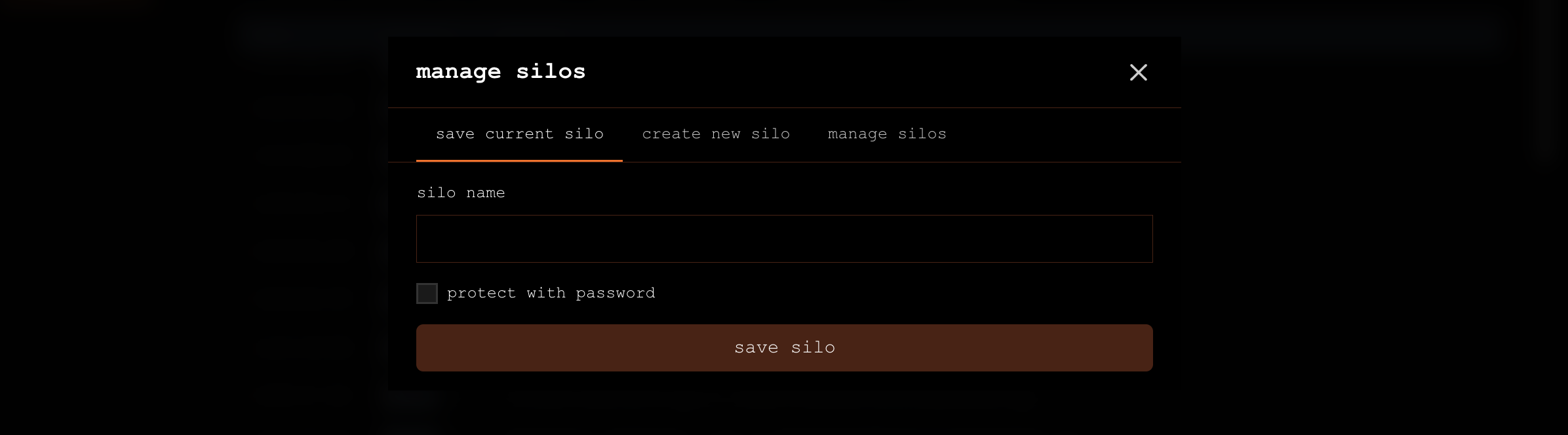
creating a new silo
- click on the silo name in the top navigation
- select "manage silos" from the dropdown
- click "create new silo"
- enter a name for your silo
- choose initial settings (optional)
renaming a silo
- go to "manage silos"
- click on the silo you want to rename
- click the edit icon
- enter the new name
- click "save"
switching between silos
- click on the current silo name in the top navigation
- select the silo you want to switch to from the list
- the interface will reload with the selected silo's data
silo settings
each silo can have its own:
- indexing preferences
- search settings
- face clustering sensitivity
- storage location
- backup schedule
deleting a silo
caution
deleting a silo removes all indexed data. your original files remain untouched.
to delete a silo:
- go to "manage silos"
- click on the silo you want to delete
- click the delete icon
- confirm deletion
this removes:
- all indexed data
- face clusters
- search indexes
- settings
your original source files are never deleted.
exporting a silo
you can export your silo data for backup or to move to another device:
- go to settings → manage database
- locate the export section
- choose what to export:
- full database (includes all embeddings and indexes)
- faces and clusters only
- configuration and settings
- select export location
- click "export silo"
the export creates a compressed archive containing:
- indexed data and embeddings
- face clusters and people names
- search indexes
- silo settings and preferences
your original source files are not included in the export.